 Tungs
TungsReal-time translation for FaceTime calls
Route FaceTime through the Tungs devices and the conversation is translated in both directions while you talk.
macOS 14 or later
How to set up Tungs for FaceTime
Install Tungs, choose your two languages, then point FaceTime's audio at the Tungs devices.
- STEP 1
Set up Tungs first
In Tungs, choose the language you speak and the language they speak, then select the microphone and headphones you actually use. Leave Tungs running alongside the call.
- STEP 2
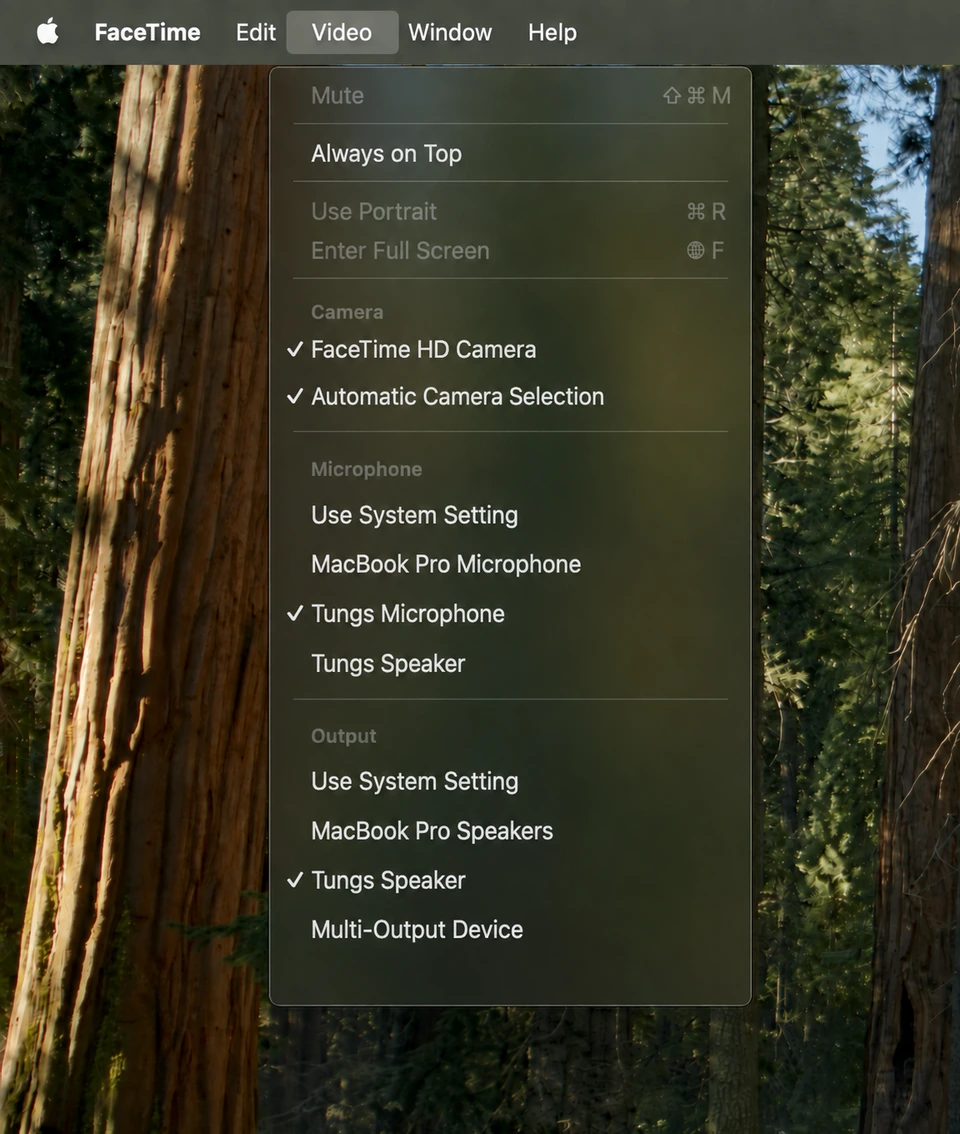
Open the Video menu in FaceTime
Go to the FaceTime app on your Mac and click the Video menu in the menu bar. Apple documents this menu as where you choose which device to use for FaceTime audio and video calls when your Mac is connected to multiple audio devices or cameras.
- STEP 3
Choose Tungs Microphone
In the Video menu, choose Tungs Microphone. Apple's wording for this action is "Choose a specific microphone or audio output device."
- STEP 4
Choose Tungs Speaker
In the same Video menu, choose Tungs Speaker. Apple covers microphones and audio output devices in that single Video menu, so both selections are made in the same place.
- STEP 5
Set Mic Mode to Standard
On a FaceTime video call, click the Video button in the menu bar, click the disclosure triangle next to Mic Mode, then select Standard. On a FaceTime audio call, click the Audio button in the menu bar, then select Standard.
- STEP 6
Optional: follow the system devices instead
In the Video menu you can instead choose Use System Setting for your microphone or audio output device. Apple states FaceTime then uses the audio devices selected in the Output pane in Sound settings, which you set at Apple menu > System Settings > Sound.
Steps follow FaceTime’s own documentation: Choose a camera or microphone for FaceTime calls on Mac Change audio options for FaceTime calls on Mac Use Mic Modes on your Mac Change the sound output settings on Mac
Worth knowing
- Mic Mode reprocesses your microphone signal. Apple describes Voice Isolation as filtering out background sounds and Wide Spectrum as including the sounds around you; the FaceTime page marks both as available on Mac models 2018 and later. Select Standard, which Apple describes as reverting to the standard mic mode, so translated speech is not filtered or gated.
- The Mic Mode control is not in FaceTime's own Video menu. Apple's steps point to the Video button (video calls) or Audio button (audio calls) in the menu bar during a call, which is a different control from the Video menu used for device selection.
- Apple documents that if no devices are listed in FaceTime's Video menu, FaceTime uses the built-in camera, microphone and speakers. Confirm that Tungs Microphone and Tungs Speaker actually appear in the Video menu before starting a call.
- FaceTime has no in-app input-level control. Apple's instruction for microphone volume is: Apple menu > System Settings > Sound in the sidebar, go to Output & Input on the right, click Input, then drag the "Input volume" slider.
- Choose the Tungs devices in FaceTime's Video menu rather than switching the macOS system output, so Tungs keeps its own access to your real microphone and headphones.
Questions
Does FaceTime on Mac let me choose a microphone and speaker inside the app?
Yes. Apple documents a Video menu in FaceTime's menu bar for choosing which device to use when your Mac is connected to multiple audio devices or cameras. You can choose a specific microphone or audio output device there, or choose Use System Setting to follow the devices set in Sound settings. Apple's page says this applies to FaceTime audio and video calls.
Where exactly do I select Tungs Microphone and Tungs Speaker in FaceTime?
Open FaceTime, click the Video menu in the menu bar, and choose Tungs Microphone. In that same Video menu, choose Tungs Speaker. Tungs installs both as virtual audio devices, so they appear in the menu alongside your built-in microphone and speakers. You do not need to visit System Settings unless the devices do not appear.
Do I need to change anything in System Settings > Sound?
Not if you pick the devices directly in FaceTime's Video menu. You would only use Apple menu > System Settings > Sound if you select Use System Setting in the Video menu, or if the Tungs devices are not listed there. In Sound settings, Apple's steps go to Output & Input on the right, where the Output and Input tabs hold the system-wide device choices.
Will FaceTime's Voice Isolation interfere with translated audio?
It can. Apple describes Voice Isolation as filtering out background sounds and Wide Spectrum as including the sounds around you, so either may process the translated speech Tungs feeds in. Set Mic Mode to Standard: on a video call click the Video button in the menu bar, click the disclosure triangle next to Mic Mode, then select Standard; on an audio call click the Audio button in the menu bar and select Standard. Apple does not document whether this setting persists between calls, so check it if audio sounds wrong.
Other apps
Tungs is an audio device, so the same two devices work anywhere with a microphone and speaker menu.
13 languages — English, Spanish, Portuguese, French, German, Italian, Japanese, Korean, Chinese, Russian, Hindi, Indonesian, Vietnamese — with the spoken language detected automatically.