 Tungs
TungsReal-time translation for Zoom calls
Set Zoom's microphone and speaker to Tungs and the conversation is translated in both directions while you talk.
macOS 14 or later
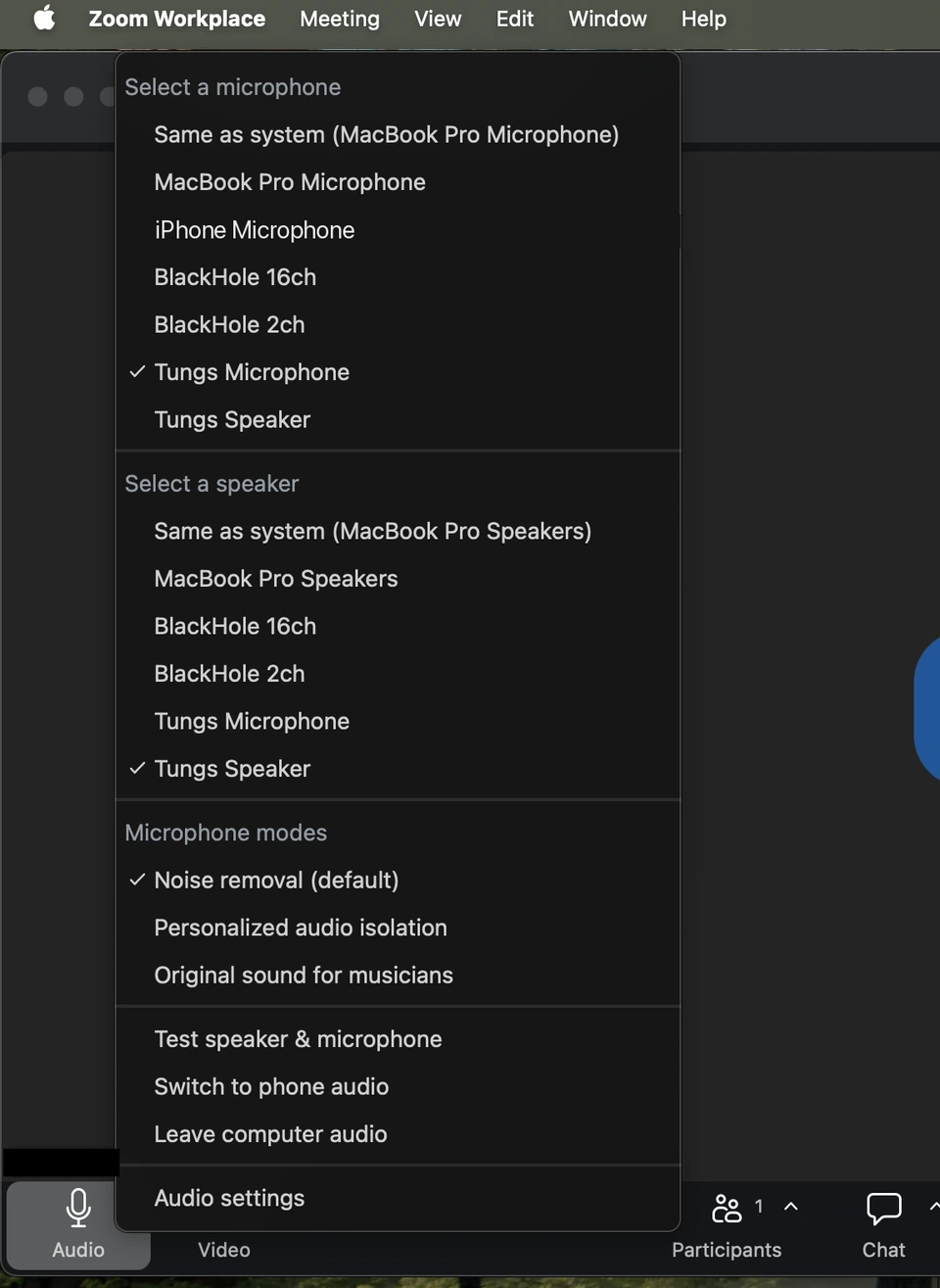
How to set up Tungs in Zoom
Install Tungs, choose your two languages, then point Zoom's audio at the Tungs devices.
- STEP 1
Set up Tungs first
In Tungs, choose the language you speak and the language they speak, then select the microphone and headphones you actually use. Leave Tungs running alongside the call.
- STEP 2
Open Zoom's Audio settings
In the Zoom Workplace desktop app, click your profile picture, then click Settings, then click the Audio tab. On versions 6.7.0 and higher you can also click the gear icon in the navigation bar.
- STEP 3
Set the speaker to Tungs Speaker
Under Speaker, select Tungs Speaker from the drop-down menu. Click Test speaker to play a test tone and verify the selected speaker is working.
- STEP 4
Set the microphone to Tungs Microphone
Under Microphone, select Tungs Microphone from the drop-down menu. Click Test microphone to record test audio and play it back.
- STEP 5
Turn off Automatically adjust microphone volume
Still under Microphone, clear the Automatically adjust microphone volume checkbox, which Zoom describes as adjusting your microphone volume automatically to ensure a consistent level. Then set the Input volume slider by hand.
- STEP 6
Choose Original sound for musicians
Under Microphone modes, select Original sound for musicians instead of Noise removal (default). Zoom documents that this option captures a fuller range of sound and that noise suppression will be turned off, and that it allows greater preservation of audio received from your microphone without using Zoom's echo cancellation and audio filters.
Steps follow Zoom’s own documentation: Changing settings in the Zoom Workplace desktop and mobile app Changing audio settings during a Zoom meeting Troubleshooting speaker or microphone issues in the desktop app Managing advanced audio settings
Worth knowing
- Automatically adjust microphone volume is a setting under Microphone in Settings > Audio, alongside the Input volume slider. Zoom describes it as adjusting your microphone volume automatically to ensure a consistent level, so left on it applies its own gain control to whatever Tungs Microphone sends.
- Microphone modes has three documented options: Noise removal (default), which Zoom says applies its software audio processing; Personalized audio isolation, which Zoom says uses your voiceprint to optimize for voice clarity and suppress background noises; and Original sound for musicians, which Zoom says turns noise suppression off. Live performance audio is a separate audio profile, not a fourth microphone mode - Zoom states that enabling it will disable any microphone mode settings.
- Echo cancellation is a separate control at Settings > Audio > Advanced, with Auto, Low and High options. Zoom states these Advanced features are intended for advanced technical users and that toggling them without knowledge of a device's hardware and software configuration can result in a sub-standard user experience.
- Zoom lists only a version requirement for these settings: the desktop app at the Global minimum version or higher. If Tungs Microphone or Tungs Speaker does not appear in the drop-down, Zoom's troubleshooting article attributes a missing audio device to Zoom not having been given permission to access it, and directs you to enable microphone access in privacy settings.
Questions
Does Zoom on macOS have its own microphone and speaker pickers, or does it just follow the system sound setting?
Zoom has its own pickers. The Audio tab in Zoom's Settings has a Speaker drop-down and a Microphone drop-down that select the devices Zoom itself uses. That means selecting Tungs Microphone and Tungs Speaker in macOS System Settings > Sound is not enough - you have to select them inside Zoom as well.
Can I switch to Tungs after the meeting has already started?
Yes. Zoom's troubleshooting article says that to change the microphone or speaker during a meeting, on the controls toolbar you click the upward arrow beside the Mute option. Zoom's audio testing article likewise says to click the arrow icon next to Mute/Unmute in the meeting controls toolbar to choose a different speaker or microphone. That same menu also offers Audio settings..., which opens the full Audio tab.
Will Zoom's noise removal interfere with translated audio?
It may. Zoom's default microphone mode is Noise removal (default), which applies Zoom's software audio processing. Zoom documents that the Original sound for musicians and Live performance audio profiles allow for greater preservation of audio received from your microphone without using Zoom's echo cancellation and audio filters, and that Original sound for musicians turns noise suppression off. Zoom's separate Echo cancellation control under Settings > Audio > Advanced is worth checking too.
Does the person on the other end of the Zoom call need to install anything?
No. Tungs runs entirely on your Mac, where it installs two virtual audio devices called Tungs Microphone and Tungs Speaker and translates speech in both directions while the call runs, across 13 languages. The other participant installs nothing and needs no account. Tungs requires macOS 14 or later on your side only.
Other apps
Tungs is an audio device, so the same two devices work anywhere with a microphone and speaker menu.
13 languages — English, Spanish, Portuguese, French, German, Italian, Japanese, Korean, Chinese, Russian, Hindi, Indonesian, Vietnamese — with the spoken language detected automatically.